Importing existing records
Upload a CSV, review records and approve the import.
Last updated 2026-10-23
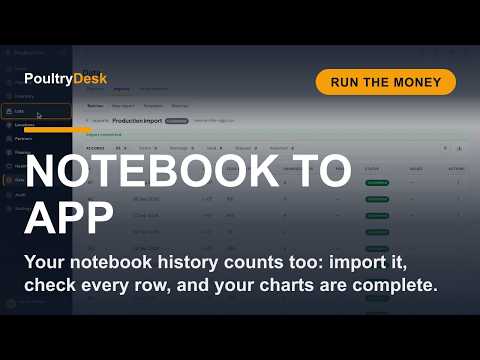 Watch: Lesson 15Bring in your old recordsPlay here (1:41)
Importing existing records
Upload a CSV, fix the review, then approve. Uploading never imports records.
The steps

- Open Data > Imports > New import and choose the type. For mortality, feed events and lots a Vertical field appears; choose Broiler or Layer.
- Download template and replace examples; See its columns explains fields.
- Pick one UTF-8
.csv, up to 50 MB. Choosing uploads it immediately. Wait for Ready, then Check file. Validation runs on submission. - Review is required, with no auto-commit. Choose Edit records. Open a numbered record, correct it and Save and check. Exclude only records you do not want imported.
- Check import. Review included/excluded counts, payments, allocations and totals by currency.
- Approve and import. Accepted records are never posted twice.
Rate limited? Wait one minute. Network error? Keep the batch, reconnect and Check import; use Resume import if offered. An interrupted Check file can resume with the same file. For a legacy batch stuck Committing, wait five minutes and use Recover import on a computer, then review and retry.
What you can import
Sales, expenses, production, mortality, Feed, Lots, partners and inventory
snapshots. Data > Imports > Templates lists each type's columns, required
values, accepted headings and examples. Use display names such as Eggs or
Salaries & wages where supported. Dates accept YYYY-MM-DD or DD/MM/YYYY.
Importing Feed events
Each row needs Lot and quantity. Choose one source:
- Inventory-backed: Feed item key, and location/batch if needed. Leave direct-expense fields blank.
- Direct Feed Expense: Source Expense ID and a 10-500-character reason. It must be an active non-inventory Feed expense allocated to that Lot.
- Quantity-only history: no source, only for organizations without Inventory.
Never mix stock and direct-expense fields. Stock, batch and costing checks still apply.
Importing sales and expenses across several lots
Use semicolon-separated Lot ID values. For several Lots, choose Allocation method. Custom ratio needs proportions in matching Lot order; expense-only Manual needs amounts adding to the total. One Lot needs no method; an unallocated expense stays overhead.
Blank Currency uses Settings > Finance default; explicit Currency stays as supplied. Review it before approval. A matching allocation rule may supply the method; sales otherwise use the default sale method. Expenses without a matching rule need a method. Rules never replace the file's Lots. Review the calculated split.
Egg grades on imported sales
Enter confirmed Egg grade: Jumbo, Large, Medium, Small, Cracked / broken or Dirty. S/M/L mean Small/Medium/Large; B is not guessed. Blank records no grade and does not bypass stock checks.
Choose Farm produced or Inventory purchase, Farm name, matching stock and package. A file's Farm code/exact name can resolve a unique produced pool by farm/grade, never by stock quantity. Multiple streams need a choice; purchased stock is chosen in review. A saved stock choice overrides the file's farm. Financial allocation never chooses physical stock.
For sorting with sale, use Preparation mode: Sort now and Operation reference. Follow the sorting import steps.
Importing selected live birds
Use Select and sell, one row per physical Lot, with the same Operation reference, customer, date and currency. Include grade, package, quantity, birds selected and selected live weight kg. Unsold selected birds remain output; rejected birds cannot sell.
Enter Paid on every row, including 0. Included payments need one method/reference and the sale date; record other-date payments separately. Partially paid multi-row selections are unsupported. Approve the whole operation together; excluding one member blocks it. Check later-dated history and changed costs.
For Already harvested, choose Lot, grade and package; leave selection count, weight and operation reference blank. Retrying never selects or ships twice.
Importing layer production
Use Eggs collected, or Trays + Loose eggs, never both. A tray is 30 eggs; loose eggs must be 0-29. Damaged eggs are optional.
Use one Full day row (blank Period means Full day), or separate Morning and Afternoon rows. Do not mix or repeat periods for the same Lot/day. Existing captures are checked before posting.
Correct records in review
Open a numbered record. Edit its fields and Save and check; this saves, not imports. Original values shows uploaded cells. Cancel discards unsaved changes. Undo latest saved change reverses an eligible saved decision while keeping history; save/cancel current edits first.
Previous / Next follow the active filter. Navigation keeps unsaved changes on this device; it does not save them to PoultryDesk. Imported or unconfirmed records cannot be edited. Needs match means a required reference is unresolved.
Exclude this record from the import saves immediately; Include again restores checks. Finish with Check import and Approve and import using review and commit access. Changed dependencies may require another check.
Sale totals and payments
Edit Total to recalculate Unit price with Quantity fixed. Total must remain representable at whole-cent unit prices. Quantity × Unit price must agree with a supplied CSV Total. Enter ordinary currency units, not cents.
| Paid | Result |
|---|---|
| Blank | Payment unspecified; no invoice/payment created |
| 0 | Unpaid invoice |
| Positive, at most Total | Invoice plus a new payment; method and date required |
Reference is optional. Never enter a payment already recorded. Invoicing plan/access and payment permissions are required; failure does not silently import a sale alone. Clearing Paid also requires clearing receipt details. Review Payments and remaining unpaid before approval.
Stock-backed sales need Package: quantity counts packages, price is per package. Two trays at 430 total 860 and deduct 60 eggs. Recognized source units may preselect a package; ambiguous bag/crate factors need an explicit choice. Keep source unit retains the legacy unit interpretation.
Shared Use walk-in customer/supplier requires fully paid records, online access and appropriate permissions. It saves the partner choice, not payment. Keep a named partner for debt. Create as walk-in retains a buyer's name; shared walk-in does not.
Expense payments
Paid follows the same blank/zero/positive rules against Amount. Positive Paid creates a new supplier payment with method/date; do not repeat one already recorded. Review stated payments separately from unspecified payments.
Changes saved on this device
Saved on this device ... Not yet saved to PoultryDesk is a local draft. Choose Save and check to send it. Waiting to send pauses editing until confirmed; reconnect or Send now. Import still needs separate approval.
If another reviewer changed the record, use Review draft, check and save again, or Discard. Drafts expire after seven days, with up to 50 records per person/device; oldest go first. Searches, checking and importing require connection.
For eggs, choose farm-produced pool/grade/stream or purchased item/location. Purchased locations must belong to the farm. Choosing purchased stock clears production-Lot revenue allocation; birds still need a physical Lot. Save a single-record source/allocation choice together with its fields.
Match customers, suppliers and Lots
Open the reference picker, search name/code/ID (or partner phone), and choose the intended result. Exact unambiguous IDs or full partner names can match ignoring case/extra spaces; partial, conflicting or duplicate names need your choice. Feed items/locations can match unique keys or full names; Feed type never guesses an item. Inventory snapshot names require explicit matching. Archived references must be restored or replaced.
Customer choices apply immediately; save/cancel other edits first. Other single-record choices stay in the draft until Save and check. For grouped choices use Apply to matching records, review All N records, then confirm. Excluded/imported rows and conflicting evidence stay separate; exceptions can be matched individually. No match imports a record.
For Lots imports, Lot ID names the new Lot. Save a changed Site before choosing its House; houses must belong to that active Site. Site-restricted reviewers need an allowed location. These choices are not remembered across files.
Use + New customer/supplier for a missing partner, then explicitly select it on return once available. Save changed date/product before reopening Lot suggestions. Sell from chooses physical stock; Edit allocation chooses revenue Lots.
Re-check farms and customers
Automatic matches are saved when Edit records opens. Ordinary saves retain them. To refresh, choose Re-check farms and customers, Re-check suppliers or Re-check feed sources on the batch page; confirm the source-row count, then review results. Saved choices, blanks and exclusions stay.
Re-check needs connection, import edit and relevant read access. It cannot be undone and is unavailable after any record imports or while results are uncertain. Lookup failures preserve the review. For an older partly imported batch without a matching baseline, contact support; never re-upload accepted rows.
Customers in this file
Open Customers beside Column assignments. Each file name appears once. Choose Keep, an existing customer, Create customer, Create as walk-in, or Leave for now. Shared Use the walk-in customer is offered only for fully paid records. Save changes applies to included, unimported records.
Creation needs write permission. Existing import-created identities are reused, not overwritten; archived customers need restoration. Conflicting details stay errors. Do not create replacements while a result is still pending.
Suppliers in this file
Open Suppliers and match/create each name once, then Save changes. Shared walk-in requires fully paid records and keeps no name. Suppliers have no named walk-in type. Existing identities are reused without changing contact details.
Contacts you already have
Already exists names a possible existing contact. Exclude to keep it, or include if this is a different person with the same name. Neither choice updates the existing contact. Retrying the same file does not add contacts twice.
Remembered matches
Customer choices request remembering when eligible; supplier/Lot choices need Remember for future imports. Learning happens only after import, never from excluded rows or cancelled reviews. Evidence must agree on record type, name, phone and, for Lots, Site/House and eligible date.
Future partner matches may apply automatically; Lot suggestions marked Used before still need selection. File IDs take priority. In Imports > Matches, Forget > Forget match stops future suggestions without changing imported records or an open review's saved matches.
Review financial allocation
- Open Allocation > Edit allocation. Choose eligible Lots for the saved date, up to 100 targets.
- One target is Direct. Several use a permitted method; Custom ratio needs proportions, and expense-only Manual needs exact amounts and a reason.
- Use This record only > Save and check, or save/cancel edits first, then Find matching records > Apply to N records for a group.
- Preview server-calculated amounts, totals, date and basis.
- Check import, inspect Approved allocations, then approve.
Skipping allocation leaves expenses as overhead. A Lot-backed sale without revenue targets credits its source Lot; a farm-pool sale stays farm-level. Grouped Lot-backed sale changes also set physical source to the first ticked Lot; use This record only to preserve sources. Farm pools stay unchanged.
Changed or unavailable basis needs correction and a fresh preview/approval; it never silently becomes an equal split. This requires Lot-read access.
Fix column headings
Open Column assignments, choose the source column by numbered position and Save columns and check. Enter values per row handles a missing column. Assignments affect the whole file and cannot change after any record imports. Original columns remain available.
Split a production total across Lots
- Save source eggs, optional damaged total, date and period with Lot blank or unmatched. Do not duplicate an aggregate into separate uploaded rows.
- Choose Lot split > Split by Lot and select eligible Layer Lots.
- Enter exact collected and, if supplied, damaged counts for each Lot.
- Add up to 100 Lots. Both totals must reconcile; PoultryDesk never distributes an unexplained difference.
- Save split and check, then Check import and approve the created rows. The aggregate is not posted as an extra parent record.
Lot/day/period duplicates and Full day/split-period overlaps remain blocked. Before importing, Return to one Lot removes the split; Cancel split changes only discards current unsaved edits.
Recover a partially imported split
Partly imported identifies remaining rows. Source totals/date/period and accepted rows lock. Correct only remaining rows, check and approve again. For uncertain results, Check import > Resume import before editing. Never create a second batch. A partially accepted split cannot add/remove rows or exclude the remaining aggregate; resolve it or contact support.
Quick guides
Review an import
Filter Errors or Needs match, fix the numbered records, then Check import and approve. A network error means check status, not upload again.
Edit an expense record
Match Supplier, enter Amount/Paid in ordinary currency units and review allocation. Direct Feed needs a charging reason; no target Lots means overhead. Save and check.
Edit a sale record
Match Customer, confirm grade/package, choose physical Farm source or bird Lot, and review revenue allocation separately. Save and check.
Edit a production record
Choose individual eggs or trays/loose, then Lot/date/period. Use Split by Lot only for an aggregate with no matched Lot. Save and check.
Edit a customer or supplier record
Check name and phone; resolve possible duplicates or Already exists before saving and checking. Existing contact details are not overwritten.
Edit a flock or stock record
Match Lot/item/location, use whole counts and valid dates. Cause and Feed type are optional free text; stocked Feed also needs its costing item. Save and check.
After importing
Records appear in their normal timelines with the import batch reference. Imported values use normal correction workflows. The same file cannot double-post. Use Status/Type filters and Older / Newer in Imports to find previous batches.